Monitoring Repeater Performance
Once a repeater is online, the next practical question is whether it is actually helping the network. Regular checks take only a few minutes and quickly show whether a site is useful, idle, or causing problems.
Is the Repeater Online?
The simplest check is whether the repeater is reachable and responding.
- In the companion app, look for the repeater in your contacts or use the Discover feature. A recently heard advert or successful path trace confirms it is on the air.
- If you have remote access, a successful login or a response to a simple command (such as
verorstats) shows the station is running. - If the repeater has been silent for an unusually long time, it may have lost power, suffered an antenna problem, or gone offline.
Checking with a Path Trace
A path trace shows the exact route a message takes and the signal quality at each hop. It is one of the most useful checks you can perform when evaluating a repeater.
Where to find the path trace tool
From the Contacts or Channels screen, open the three-dot menu in the upper-right corner and select Tools. Then choose:
- Trace Path · Manual — enter the repeater identifiers in the order you want to test.
- Trace Path · Using Map — tap stations on the map to build the path visually.
You can also start a trace by long-pressing a contact and selecting Path Trace or Ping.
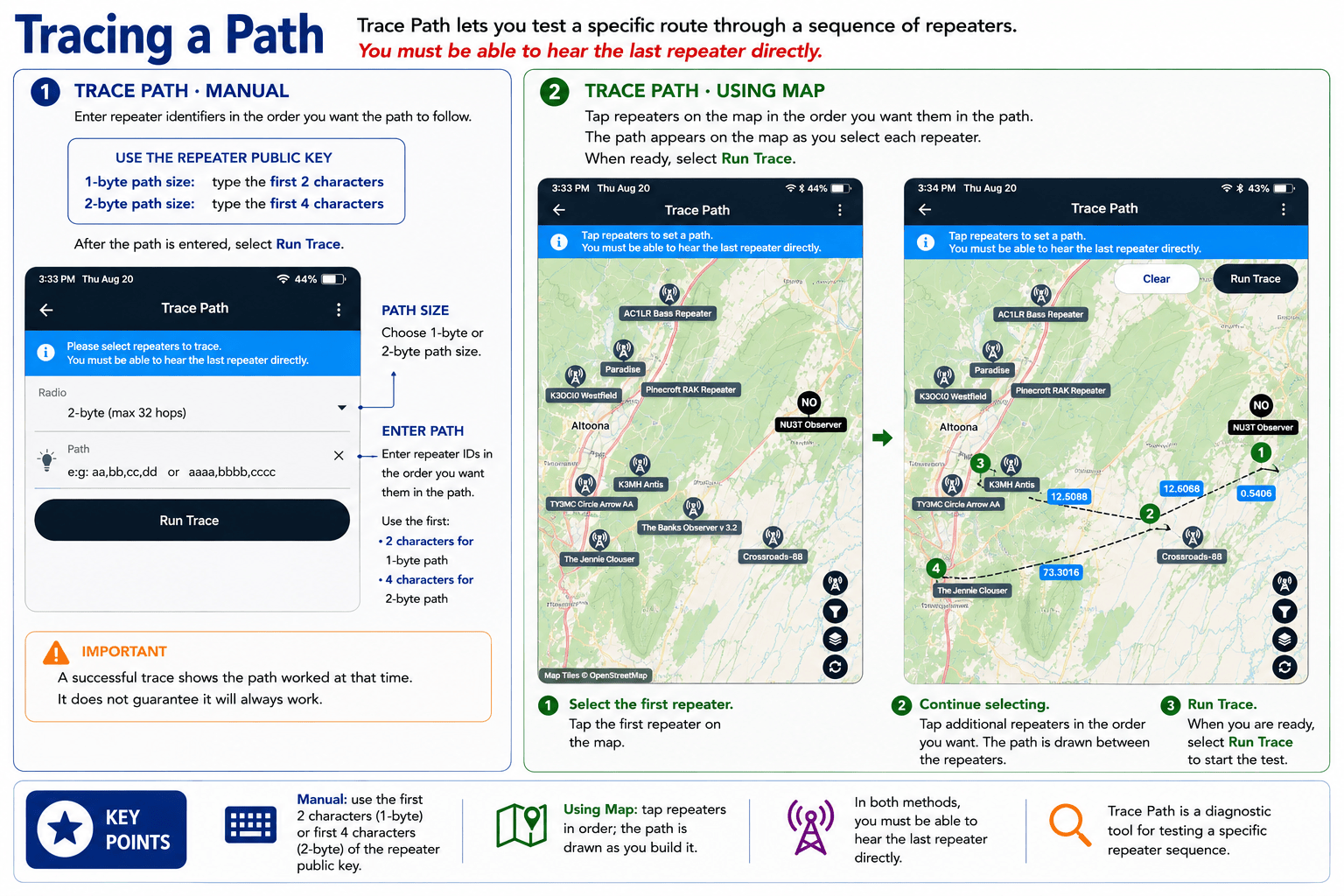
Running a simple trace to your repeater
- In Trace Path · Manual, choose the path size (1-byte or 2-byte) and enter the repeater identifiers in order (first 2 characters for 1-byte, first 4 characters for 2-byte).
- If you cannot hear the repeater directly, add the return path as well so the trace can come back to you.
- Select Run Trace.
- When the result appears, look for your repeater in the path. If it is listed, the repeater is reachable along that route.
Understanding the signal values in the trace result
The trace result lists each hop and shows signal quality for that hop. The two numbers you will usually see are SNR and, in some views, RSSI.
- SNR (Signal-to-Noise Ratio) — This is the primary value shown in most path-trace results. It measures how much stronger the signal is than the background noise, expressed in dB. Higher (more positive) numbers are better. An SNR of 5 dB or higher is generally solid; values near 0 dB or negative indicate a marginal or weak link that may fail under poorer conditions.
- RSSI (Received Signal Strength Indicator) — This measures the raw power of the received signal, usually in negative dBm (for example, −90 dBm). Less negative numbers are stronger (−70 dBm is stronger than −110 dBm). RSSI alone does not tell you whether the signal is usable; a strong signal can still be unusable if the noise floor is also high. That is why SNR is often more informative for judging link quality.
In the trace result, look at the SNR (and RSSI if shown) for the hop into your repeater and the hop leaving it. Consistently weak values suggest an antenna, height, cable, or interference problem. Repeat the trace a few times—temporary conditions can affect a single reading—so look for a pattern rather than one measurement.
A repeater that appears in real user paths (not only in your own tests) and shows reasonable signal levels is providing useful coverage.
Is It Being Used?
A repeater that is online but never appears in real message paths is not improving the mesh. Use path traces of ordinary messages to confirm actual use. A complete absence of the repeater in paths over several days usually means the site is not filling a useful gap.
Signal Levels and Coverage
When you examine a path trace that includes the repeater, the SNR and RSSI values in both directions help explain link quality. Consistently weak signals often point to an antenna, height, or interference issue. A repeater that hears nearby stations well but is rarely chosen for longer paths may be blocked by terrain or simply not needed.
Simple Ongoing Checks
Most operators find a short weekly review is enough:
- Confirm the repeater still appears in Discover or responds to a remote query.
- Look at a few recent path traces that should have used the site. Is it present when expected?
- Note any sudden drop in use or rise in failed paths. These are early signs that something has changed at the site.
If the repeater is rarely used, produces only weak signals, or appears to add congestion, the next lessons cover troubleshooting and tuning steps you can take.
Next: Troubleshooting Common Problems
← Previous: Operating & Optimizing
Continue to: Troubleshooting Common Problems →
Was this material helpful? Leave feedback or suggest a correction.