Configuring MeshCore Settings
The Settings screen provides access to configuration options for the MeshCore Companion and app, along with maintenance, diagnostic, backup, and device-information functions.
Some settings affect only how the app behaves or displays information, while others can change how the Companion operates or alter information stored on the device. For that reason, it is useful to understand what a setting controls before changing it.
This lesson walks through the Settings screen in the same general order in which the options appear in the app. Along the way, we will identify settings that are commonly useful, explain what each option controls, and call attention to operations that should be used with additional care.

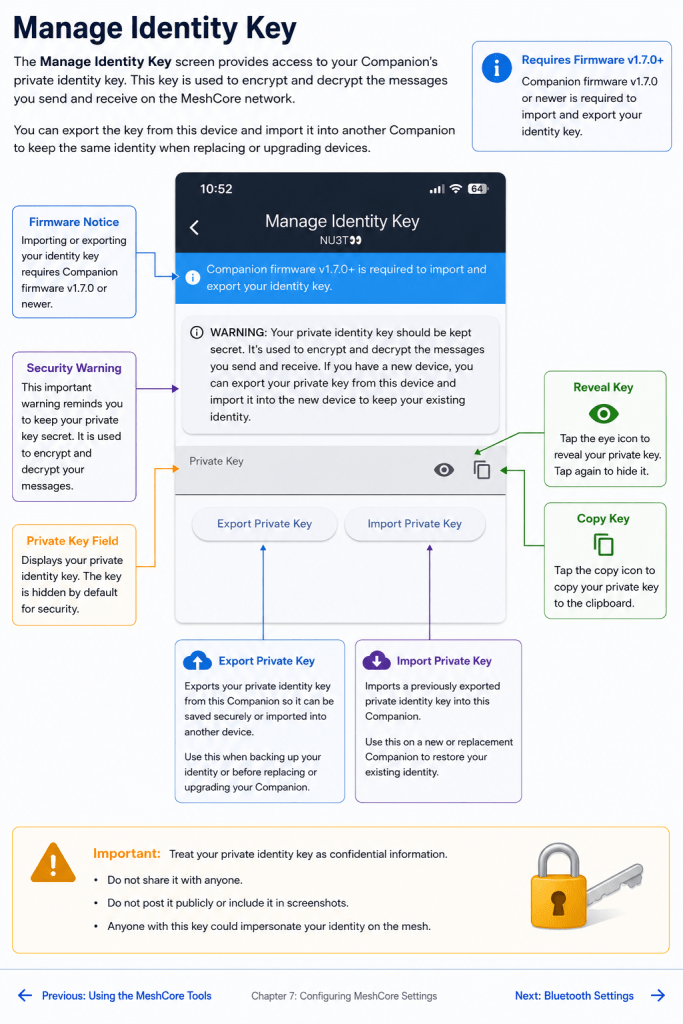
Manage Identity Key
The Manage Identity Key screen provides access to the Companion’s private identity key. This key is an important part of your MeshCore identity and is used when encrypting and decrypting messages sent and received by the device.
MeshCore allows the private key to be exported from one Companion and imported into another. This can be useful when replacing or upgrading a Companion because it allows the new device to retain the existing identity rather than creating an entirely new one.
The eye icon can be used to reveal the private key, while the copy icon provides a way to copy it. The Export Private Key and Import Private Key buttons provide the mechanisms for transferring the identity between devices. The screen also notes that Companion firmware v1.7.0 or newer is required for identity-key import and export.
Important: Treat the private identity key as confidential information. Do not post it publicly, include it in screenshots, or share it with other users. Anyone obtaining the private key would possess information intended to remain associated only with that identity.
Bluetooth Settings
The Bluetooth Settings screen controls how the Companion protects Bluetooth connections with a PIN.
The Bluetooth Pin Type menu provides two choices:
- Random (screen required) — The Companion uses a randomly generated PIN that can be displayed on devices equipped with a screen. This is the setting shown in the example.
- Custom — Allows a Bluetooth PIN to be set manually rather than relying on a randomly generated PIN.
After making a change, use the check mark in the upper-right corner to save the setting.
Important: Do not lose or forget a custom Bluetooth PIN. The app warns that if the PIN is forgotten, recovery requires flashing the Companion with USB firmware and connecting through the MeshCore web app to reset it.
Which setting should you use?
For a Companion with a display, Random (screen required) provides a convenient way to use a changing PIN because the device can show the PIN when it is needed.
For a Companion without a screen, Custom provides a PIN that can be entered without needing the Companion to display one. Be sure to record the PIN somewhere secure before relying on this configuration.

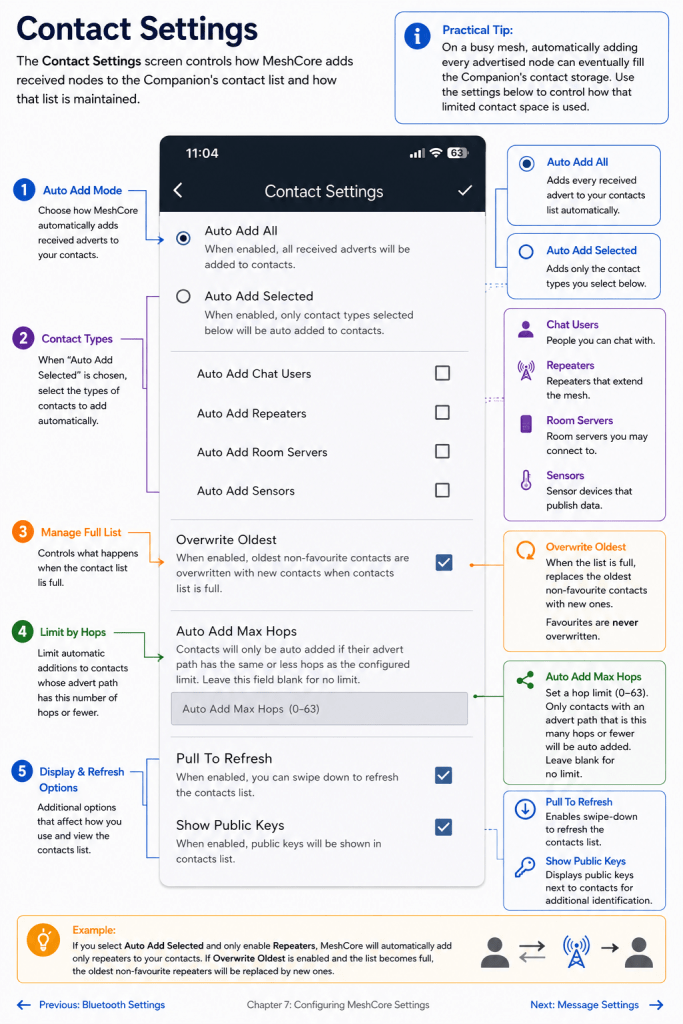
Contact Settings
The Contact Settings screen controls how MeshCore adds received nodes to the Companion’s contact list and how that list is maintained.
At the top of the screen are two approaches to automatically adding contacts:
- Auto Add All — Adds all received adverts to the contact list.
- Auto Add Selected — Adds only selected types of contacts. When this option is used, you can individually enable Chat Users, Repeaters, Room Servers, and Sensors.
Managing a Full Contact List
Overwrite Oldest allows MeshCore to replace the oldest non-favourite contacts with newly received contacts when the contact list becomes full. Favourite contacts are protected from this automatic replacement.
This option can be particularly useful on an active mesh, where the Companion may hear advertisements from many different nodes over time.
Limiting Contacts by Distance Through the Mesh
Auto Add Max Hops limits automatic contact additions according to the number of hops in the received advert path.
For example, setting a hop limit causes MeshCore to automatically add a contact only when its advert arrives over a path containing that number of hops or fewer. The available range is 0–63. Leaving the field blank removes the hop limit.
This can be useful when you want the contact list to concentrate on nodes relatively close to your part of the mesh rather than automatically collecting every distant node whose advert eventually reaches you.
Contact List Display and Refresh
Two additional options affect how you work with the contact list:
Pull To Refresh enables the familiar swipe-down gesture for refreshing the contacts list.
Show Public Keys displays public keys with entries in the contacts list. This provides additional identification information but also increases the amount of information displayed for each contact.
Practical Tip: On a busy mesh, automatically adding every advertised node can eventually fill the Companion’s contact storage. Auto Add Selected, Auto Add Max Hops, and Overwrite Oldest provide different ways to control how that limited contact space is used.
Message Settings
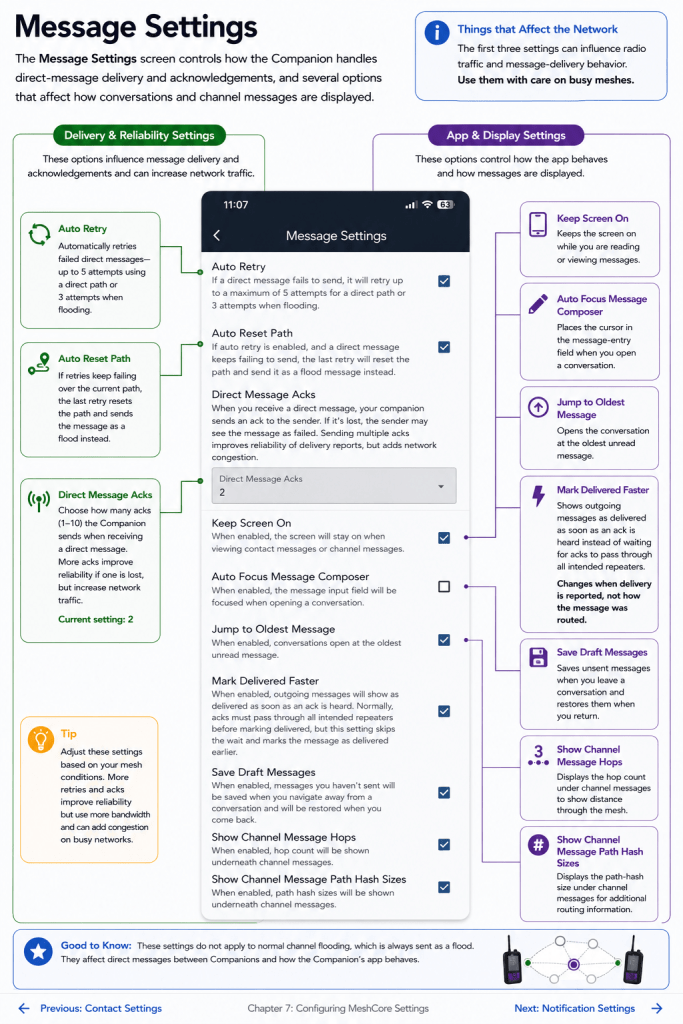
The Message Settings screen controls how the Companion handles direct-message delivery and acknowledgements, as well as several options that affect how conversations and channel messages are displayed in the app.
Auto Retry — When enabled, MeshCore automatically retries a direct message that fails to send. The app indicates that it may make up to 5 attempts using a direct path or 3 attempts when flooding.
Auto Reset Path — Works with Auto Retry. If repeated attempts over the existing direct path fail, the final retry clears that path and attempts delivery as a flood message instead. This can help when a previously learned route is no longer usable.
Direct Message Acks — Sets how many acknowledgements the Companion sends after receiving a direct message. Multiple acknowledgements can make delivery confirmation more reliable if an acknowledgement is lost, but they also generate additional network traffic. The screenshot shows this set to 2.
Keep Screen On — Prevents the screen from turning off while viewing contact or channel messages. This affects the app interface rather than radio routing.
Auto Focus Message Composer — Automatically places the cursor in the message-entry field when a conversation is opened.
Jump to Oldest Message — Opens a conversation at its oldest unread message, making it easier to begin reading where you left off.
Mark Delivered Faster — Allows an outgoing message to be shown as delivered as soon as an acknowledgement is heard rather than waiting for acknowledgements to pass through all of the intended repeaters. This changes when the app reports delivery, not necessarily how the message itself was routed.
Save Draft Messages — Preserves an unsent message when you leave a conversation and restores it when you return.
Show Channel Message Hops — Displays the hop count beneath received channel messages. This can be useful for understanding how far a message traveled through the mesh.
Show Channel Message Path Hash Sizes — Displays the path-hash size associated with channel messages, providing additional routing information for users interested in examining how messages traversed the mesh.
A useful distinction
The first three settings — Auto Retry, Auto Reset Path, and Direct Message Acks — deserve particular attention because they can influence radio traffic and message-delivery behavior. Most of the remaining settings primarily control how the app presents or manages messages.
Notification Settings
The Notification Settings screen lets you choose which MeshCore events should produce notifications. These settings affect how the app alerts you to activity and do not change how messages are transmitted through the mesh.
Contact Messages — Notifies you when a contact sends you a direct message.
Channel Messages — Notifies you when a message is received on a channel.
Room Messages — Notifies you when a room message is received.
New Messages while Disconnected — Provides a notification when the app reconnects and synchronizes multiple unread messages that arrived while it was disconnected.
New Contact Discovered — Notifies you when a new contact is discovered. Users who receive many adverts may prefer to leave this disabled to avoid unnecessary notifications.
Contacts Full — Notifies you when the Companion’s contact list has reached its capacity. This can be particularly useful because a full contact list may affect the Companion’s ability to retain newly discovered contacts.
Choosing Notifications
There is no single correct combination of notification settings. A user interested primarily in messaging may enable only message notifications, while someone monitoring the growth of a mesh may also want notifications about newly discovered contacts.
These settings can therefore be adjusted for convenience without changing the operation of the radio network.

Position Settings
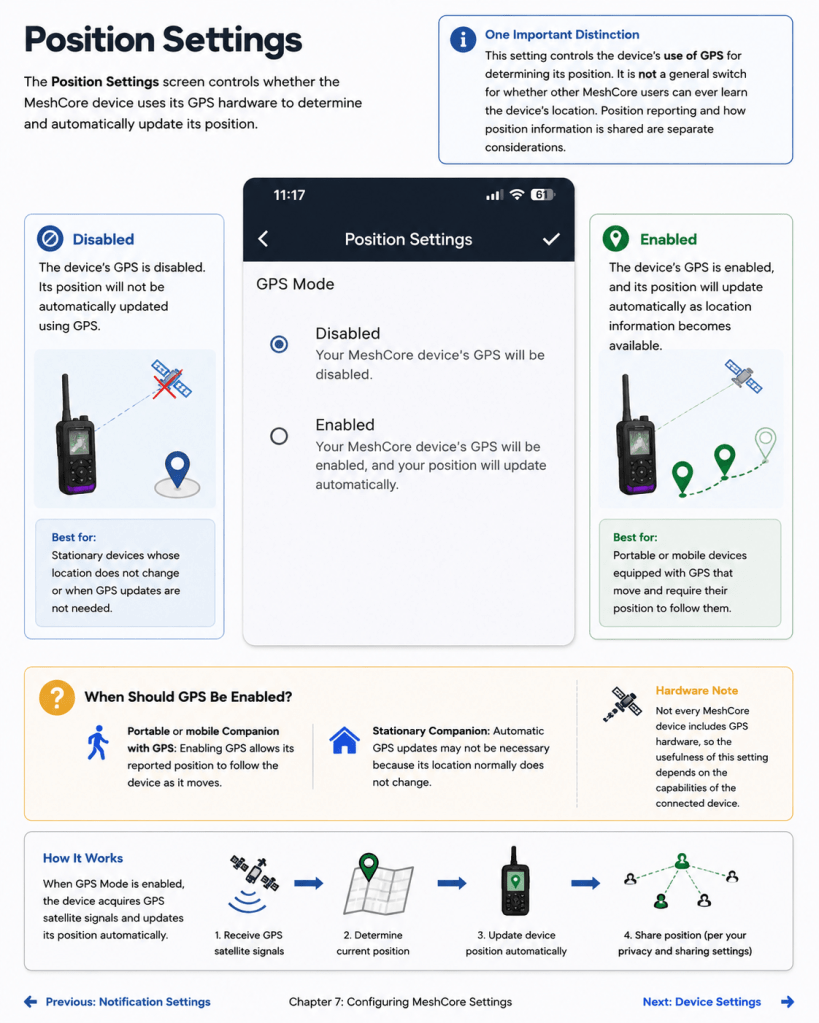
The Position Settings screen controls whether the MeshCore device uses its GPS hardware to determine and automatically update its position.
Disabled — The device’s GPS is disabled. Its position will not be automatically updated using GPS.
Enabled — The device’s GPS is enabled, and its position will update automatically as location information becomes available.
When Should GPS Be Enabled?
For a portable or mobile Companion equipped with GPS, enabling GPS allows its reported position to follow the device as it moves.
For a stationary device, automatic GPS updates may not be necessary because its location normally does not change.
Not every MeshCore device includes GPS hardware, so the usefulness of this setting depends on the capabilities of the connected device.
One Important Distinction
This setting controls the device’s use of GPS for determining its position. It should not be interpreted simply as a general switch controlling whether other MeshCore users can ever learn the device’s location. Position reporting and how position information is shared are separate considerations.
Telemetry Settings
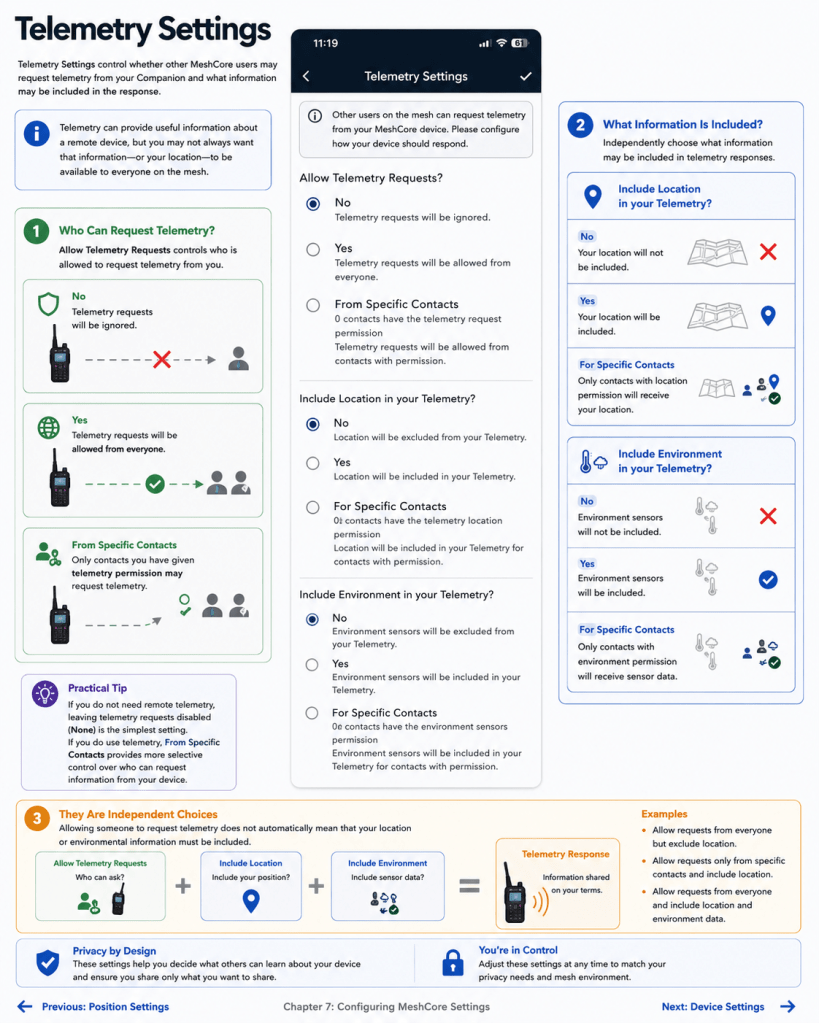
The Telemetry Settings screen controls whether other MeshCore users may request telemetry from your Companion and what information may be included in the response.
Telemetry can provide useful information about a remote device, but you may not always want that information—or your location—to be available to everyone on the mesh. MeshCore therefore provides separate controls for who may request telemetry and what information may be returned.
Allow Telemetry Requests determines who can request telemetry from your device:
- No — Telemetry requests are ignored.
- Yes — Telemetry requests are accepted from anyone.
- From Specific Contacts — Only contacts that have been granted telemetry permission may request it.
Include Location in your Telemetry? separately determines whether your device’s location is included in telemetry responses. It can be set to No, Yes, or For Specific Contacts.
Include Environment in your Telemetry? provides the same choices for environmental sensor information. This is useful on devices equipped with supported sensors while allowing you to control who receives that information.
An Important Distinction
These settings are independent of one another. Allowing someone to request telemetry does not necessarily mean that your location or environmental information must be included.
For example, you could allow telemetry requests from everyone while excluding your location, or allow location information only for selected contacts.
This separation gives you useful control over both device information and privacy.
Practical Tip: If you do not need remote telemetry, leaving telemetry requests disabled is the simplest setting. If you do use telemetry, From Specific Contacts provides more selective control over who can request information from your device.
Experimental Settings
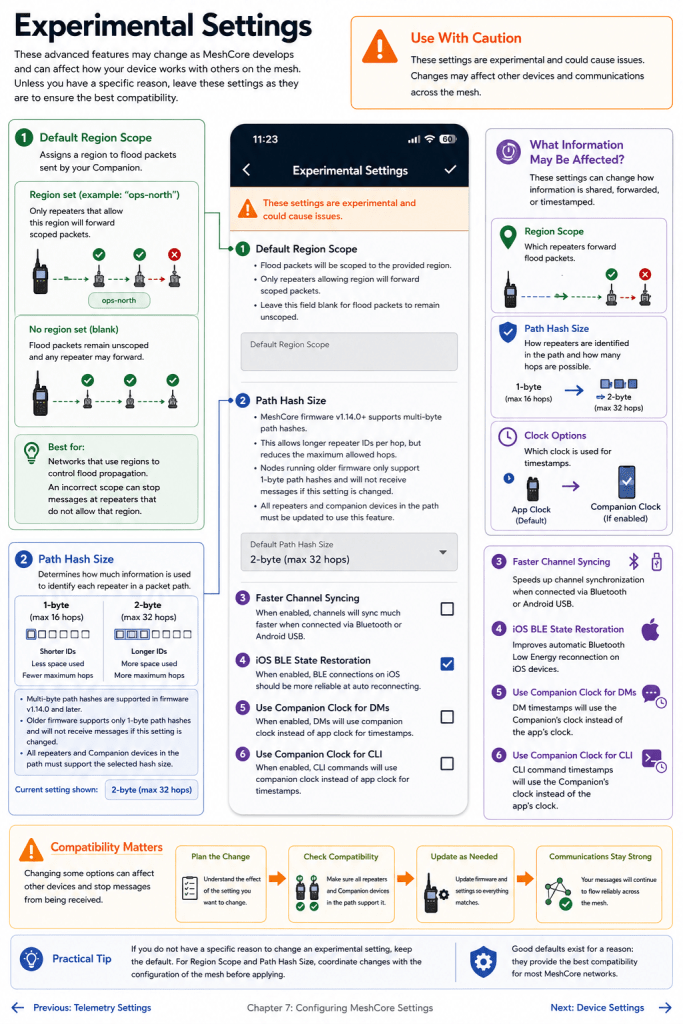
The Experimental Settings screen contains advanced features that may change as MeshCore develops. As the warning at the top of the screen indicates, these settings can cause problems if used without understanding their effect.
For most users, there is no reason to change an experimental setting simply because it is available. Some of these options affect how packets are handled by other devices on the mesh and therefore deserve additional care.
Default Region Scope assigns a region scope to flood packets sent by your Companion. When a region is specified, only repeaters configured to allow that region can forward those scoped packets. Leaving the field blank allows flood packets to remain unscoped.
This can be useful on networks that deliberately use MeshCore regions to control flood propagation, but an incorrect scope can prevent messages from traveling through repeaters that do not allow that region.
Path Hash Size controls how much information is used to identify each repeater in a packet’s path. MeshCore firmware v1.14.0 and later supports multi-byte path hashes.
A larger path hash allows longer repeater identifiers to be represented and reduces the chance of different repeaters appearing under the same shortened identifier. The tradeoff is that larger hashes consume more packet space and therefore reduce the maximum number of hops available.
The screen also carries an important compatibility warning: devices running older firmware support only 1-byte path hashes. All repeaters and Companion devices participating in the path must support the selected hash size.Changing this setting on only part of a mesh can prevent messages from being received.
In the example shown, 2-byte path hashes are selected, providing a maximum of 32 hops.
Faster Channel Syncing is intended to speed channel synchronization when connected through Bluetooth or Android USB. Because this remains an experimental feature, it is generally best left at its existing setting unless there is a specific reason to test it.
iOS BLE State Restoration is intended to improve automatic Bluetooth Low Energy reconnection on iOS. For users operating the MeshCore app on an iPhone or iPad, this can help the app recover its Bluetooth connection to the Companion.
Use Companion Clock for DMs changes the timestamp source for direct messages from the app’s clock to the Companion’s clock.
Use Companion Clock for CLI similarly uses the Companion’s clock when timestamping CLI commands.
Use Experimental Settings Carefully
Experimental does not necessarily mean unsafe, but it does mean these features may have compatibility implications or behavior that is still evolving.
In particular, Default Region Scope and Path Hash Size should be treated as network-level configuration choices.Before changing either one, consider whether the repeaters and other Companion devices through which your traffic must travel are configured compatibly.
Practical Tip: Unless you have a specific reason to change an experimental option, retaining the existing settings is generally the safest approach. Changes involving region scope or path hash size should be coordinated with the configuration of the surrounding mesh.
heme
The Theme setting controls the appearance of the MeshCore app. Unlike most settings on this screen, tapping Theme does not open another menu. Each tap cycles through the three available choices:
- Auto — The app follows the light or dark appearance selected by your device’s operating system.
- Light — The app always uses the light appearance.
- Dark — The app always uses the dark appearance.
Continue tapping the Theme setting until the desired mode is displayed on the right side of the row.
Changing the theme affects only how the app is displayed. It does not change the Companion configuration, radio operation, messaging, or operation of the mesh.
Practical Tip: Auto is a convenient choice if you already have your phone configured to switch automatically between light and dark appearance.


