Before You Begin
Before setting up a new MeshCore companion, make sure you know whether the radio already has MeshCore firmware installed.
Some devices are sold ready to use with MeshCore. Others may arrive with different firmware or no usable firmware for MeshCore at all.
If your companion already runs MeshCore, you do not need to reinstall it simply to get started. You can install the MeshCore app, power on the radio, and continue with the connection process.
If the device is running another firmware, MeshCore must be installed before the app can use it as a companion.
You will also need:
- A supported MeshCore companion device
- The correct antenna connected, if the radio requires an external antenna
- A charged battery or suitable power source
- A smartphone with Bluetooth enabled
- The MeshCore app installed on the phone
The goal of this lesson is to get the companion running MeshCore, connect it to the app, and confirm that the phone and radio are communicating correctly.
Does Your Radio Already Have MeshCore?
Before installing firmware, determine whether your companion already has MeshCore installed.
Some MeshCore-compatible devices are sold or supplied with MeshCore firmware already loaded. If yours is one of them, there is normally no reason to reinstall the firmware just to begin using it.
Other devices may arrive with different firmware. A LoRa radio that is capable of running MeshCore does not necessarily have MeshCore installed when you receive it.
If you know that your device already has MeshCore companion firmware installed, you can skip the firmware installation portion of this lesson and continue with installing the app and connecting to the radio.
Installing or Updating MeshCore Firmware
Before connecting a new device to the MeshCore app, the device must be running the appropriate MeshCore firmware.
For the personal radio being configured in this guide, you will normally need Companion firmware for your specific hardware.
The easiest place to begin is the MeshCore website:
There you can access the current Web Flasher along with instructional information and videos covering firmware installation.
The Web Flasher provides the current firmware choices for supported MeshCore hardware. Because supported devices, firmware versions, and installation procedures can change over time, we recommend using the current information provided there rather than reproducing device-specific flashing instructions in this guide.
If MeshCore is already installed on your device, the same resources can help you determine the appropriate method for updating its firmware.
Important: Make sure you select firmware for both the correct hardware and the correct MeshCore role. In this portion of the Learning Series, we are configuring a Companion.
Once the Companion firmware is installed and the device has restarted successfully, you are ready to install the MeshCore app and connect to your device.
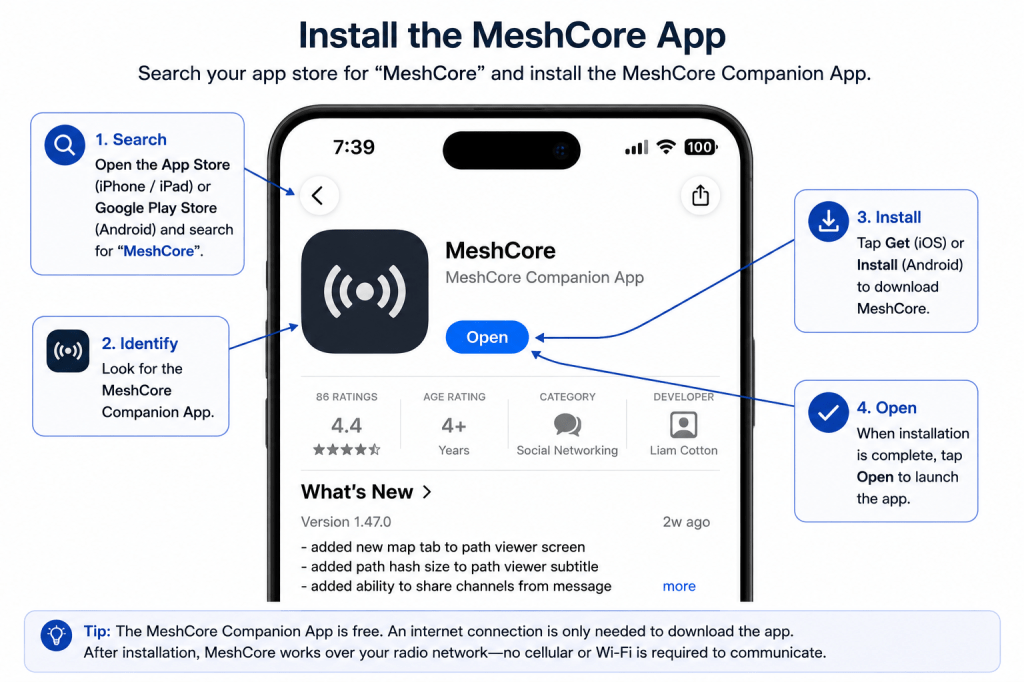
Installing the MeshCore App
For a phone-based companion, the MeshCore app is the primary way you interact with the network. It provides the interface for conversations, contacts, channels, and configuration while your companion radio handles the LoRa communication.
MeshCore apps are available for supported mobile platforms. Install the appropriate MeshCore app for the phone or device you plan to use with your companion.
Once installed, opening the app will give you the interface you will later use to connect to and configure your radio.
Before You Connect
Make sure Bluetooth is enabled on your phone.
Your phone may also request permission for the MeshCore app to use Bluetooth or communicate with nearby devices. These permissions are necessary for the app to discover and communicate with a Bluetooth companion.
Do not worry if the app initially appears fairly empty. Contacts, conversations, and other network information begin to appear as you connect a companion and start using MeshCore.
The App and the Radio Work Together
It is useful to remember the division of responsibilities introduced earlier:
The app is your interface. The companion is your radio.
Installing the app does not by itself put your phone onto the MeshCore network. The next step is to connect the app to a companion radio running MeshCore.
Connecting to Your Companion
Once the MeshCore app is installed and your companion is running MeshCore firmware, the next step is to connect the two.
For most phone-based companions, this connection is made using Bluetooth.
Turn On Your Companion
Power on the companion radio and keep it reasonably close to your phone during the initial connection.
The exact way a companion is powered depends on the device. Some have an internal battery and power button, while others may require an external battery or USB power.
Allow the radio a few moments to start.
Open the MeshCore App
Open the MeshCore app on your phone.
If the app requests permission to use Bluetooth or communicate with nearby devices, allow the requested access. Without it, the app may not be able to discover your companion.
Find Your Companion
Use the app’s connection or device selection function to look for available MeshCore companions.
Your radio should appear among the available devices if it is powered on, running compatible MeshCore companion firmware, and within Bluetooth range.
Select your companion to establish the connection.
Confirm the Connection
Once connected, the app can communicate directly with the companion. Information stored by the radio can then be displayed in the app, and configuration changes made through the app can be sent to the radio.
At this point, your phone and companion are working together as your MeshCore station.
The Bluetooth connection joins your phone to your companion. The companion’s LoRa radio is what connects your station to other MeshCore devices.
If Your Companion Does Not Appear
If the radio does not appear in the app, begin with the simple checks:
- Confirm that the companion is powered on.
- Make sure Bluetooth is enabled on your phone.
- Confirm that the MeshCore app has the required Bluetooth or nearby-device permissions.
- Keep the companion close to the phone during the initial connection.
- Verify that the radio is actually running MeshCore companion firmware.
If those items are correct and the device still cannot be found, additional troubleshooting may be necessary for the particular hardware being used.
Once the connection is established, the next step is to configure the companion for use on the MeshCore network.
Next Step: Configure Your Companion
You now have MeshCore firmware installed, the MeshCore app ready to use, and the app connected to your Companion.
The next lesson covers the essential settings needed to prepare your Companion for use on the MeshCore network.
Continue to: Your First MeshCore Configuration →

