The Public Channel — Your First Look at the Mesh
After initial setup is complete, one of the first conversations you will see in the MeshCore app is Public.
Public is a shared channel. Unlike a Direct Message addressed to one particular MeshCore user, a message sent to Public is intended for other MeshCore users participating on that channel.
For a new user, Public is a useful place to begin because it provides an immediate view of activity on the mesh.
What You May See
As your companion receives traffic, messages from other users may begin appearing in Public. How much activity you see depends on the MeshCore network around you.
In an active area, you may see conversations fairly quickly. In a quieter area, it may take some time before anything appears.
The stations and messages you see are only those your companion is currently able to hear or learn about through the mesh. They are not necessarily a complete picture of everyone using MeshCore in the surrounding area.
Your screen shows only what your station can currently hear and learn about. It does not define everyone who may receive a Public message.
Watch the Channel for a While
Before sending your first message, spend a little time watching Public.
Notice the names of stations that appear and the kinds of conversations taking place. This gives you an opportunity to see how the local MeshCore community uses the channel before joining the conversation yourself.
You may also begin seeing stations appear elsewhere in the app as your companion learns about other devices on the mesh.
For now, simply observe. Seeing Public activity is your first opportunity to watch the MeshCore network operating around you.
Sending Your First Public Message
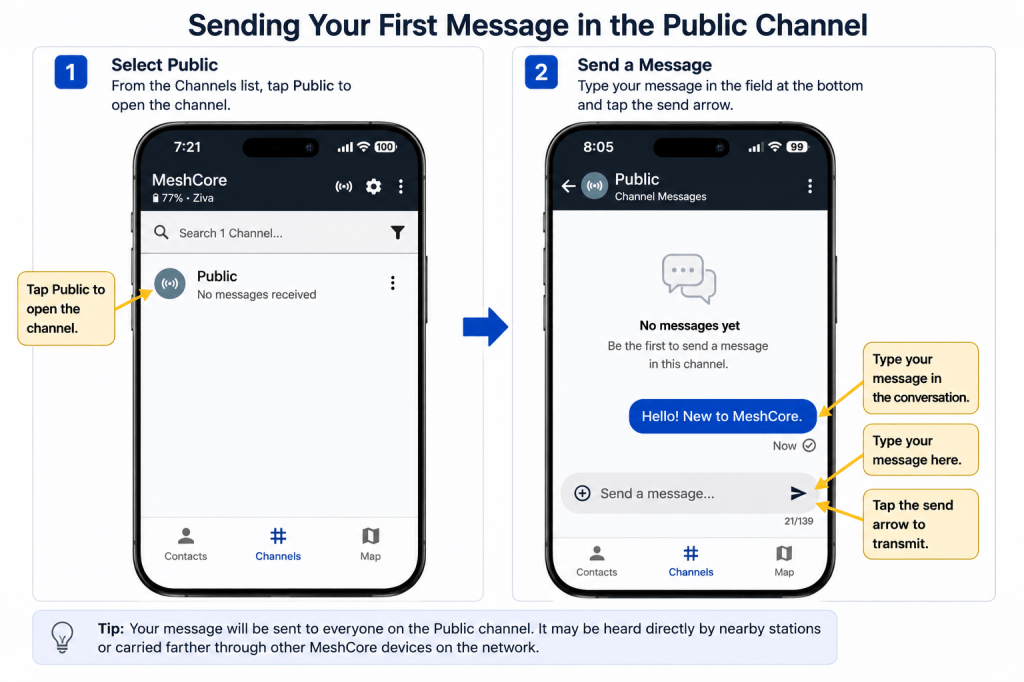
After you have watched Public for a while, you may be ready to send your first message.
Open the Public channel and enter a short message in the message field. For a first transmission, something simple is best.
You might introduce yourself, say that you are new to MeshCore, or simply send a brief greeting. There is no need to include technical information about your radio or network configuration.
When you send the message, your companion transmits it over the MeshCore network.
Finding Other MeshCore Users
Public is a shared conversation, but MeshCore also allows you to communicate directly with another station.
Those individual stations appear under Contacts.
Select Contacts at the bottom of the MeshCore app to open the Contacts screen. On a newly configured companion, the list may initially contain few or no stations.
As your companion hears other MeshCore devices directly or learns about them through the network, stations can begin appearing in the Contacts list.
A contact in MeshCore represents another station your companion has learned about. It does not necessarily mean that station is nearby or directly within radio range.
Contacts are learned from the mesh. Your Contacts list will develop as your companion hears and learns about other stations.
Understanding MeshCore Contacts
When you open Contacts in the MeshCore app, you may expect to see something similar to the contacts list on a phone. MeshCore Contacts works somewhat differently.
The list is built from information your companion has learned about other MeshCore devices. Depending on the network around you, it may include personal companions, repeaters, room servers, and other types of nodes.
Some may have been heard directly by your radio, while others may have been learned about through the mesh.
For this reason, the Contacts list is better thought of as your companion’s current knowledge of other MeshCore nodesrather than a fixed address book.
As your companion continues operating, new contacts may appear and information about existing contacts may change.
Seeing a station in Contacts means your companion knows about that station. It does not necessarily mean the station is currently online, nearby, or directly reachable by radio.
What You See in Contacts
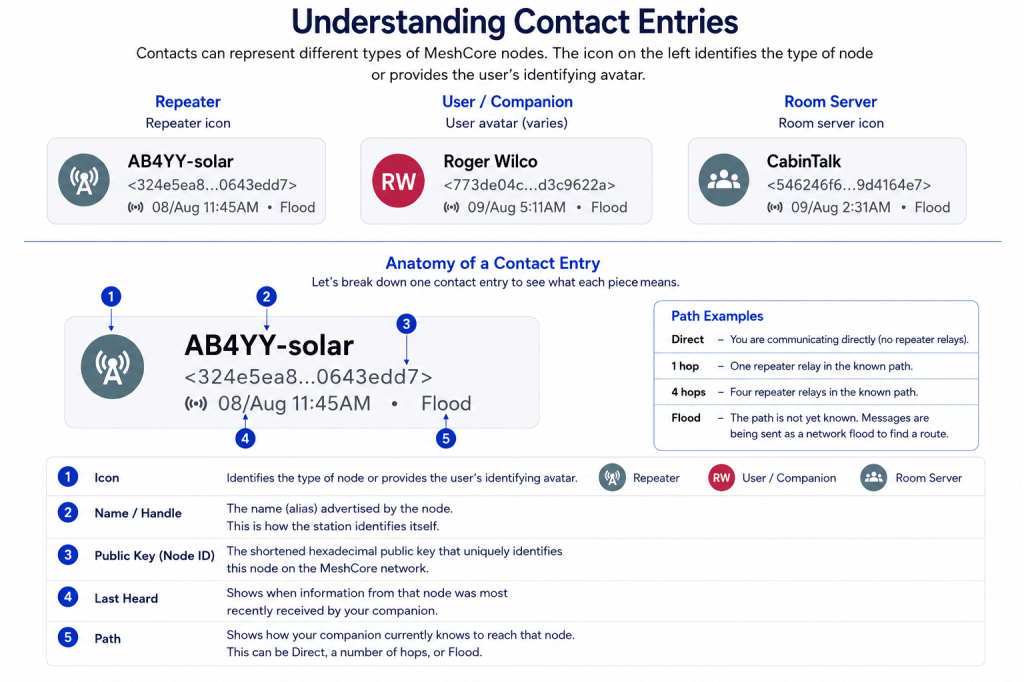
Each entry in the Contacts list represents a MeshCore node your companion has learned about.
The information displayed can help you identify the station and understand something about how your companion currently knows it. Depending on the device and the information available, you may see details such as the station name, node type, signal or path information, and when the station was last heard.
Not every contact will display the same information. What appears depends on what your companion has learned about that node.
Your First Look at the Contacts Screen
When you first open Contacts, the list may contain few or no stations. This is normal on a newly configured companion.
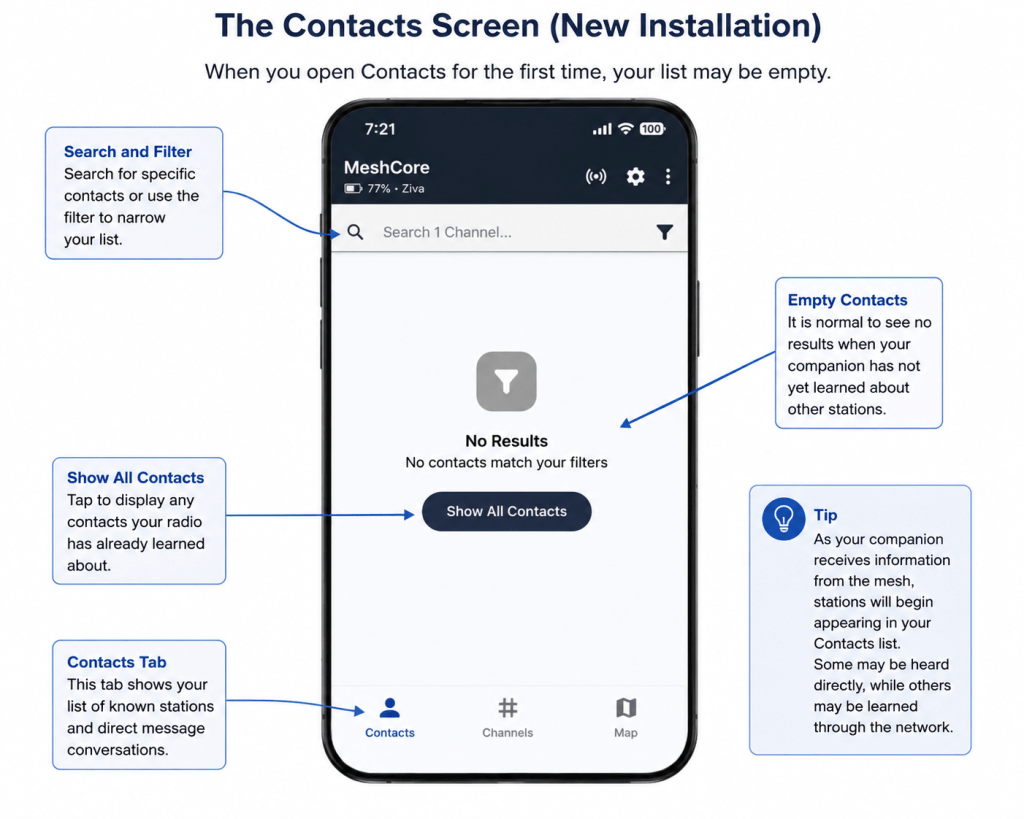
As your companion receives information from other MeshCore devices, the Contacts list will begin to develop. Some stations may be heard directly, while others may be learned about through the mesh.
Do not be concerned if your Contacts screen is initially empty. Leave your companion operating and allow it time to learn about the MeshCore network around you.
How Contacts Are Added
Your Contacts list is not something you normally need to build one station at a time. As your Companion operates on the MeshCore network, it can learn about other nodes and add them to its Contacts list.
Contacts can also be added deliberately when you want to communicate with a particular MeshCore user or node. This gives you several ways to build your Contacts list depending on how you encounter another station.
The most common methods are discovering contacts through the mesh, using Discover Contacts, and adding a contact manually.
Discovering Contacts
Many contacts appear automatically as your Companion receives information from the MeshCore network. You do not need to manually add every station you see.
As your Companion hears other nodes directly or learns about them through the mesh, information about those nodes can become available in your Contacts list.
This is why a newly configured Companion may initially show very few contacts, then gradually display more as it remains connected to the network.
Discover Contacts
MeshCore also provides a way to actively look for other nodes rather than waiting for them to appear through normal network activity.
Using Discover Contacts causes your Companion to request information from other MeshCore nodes that can be reached through the network. Responses can help populate your Contacts list with stations your Companion may not have previously learned about.
Because discovery uses the radio network, results depend on the MeshCore coverage available to you. A station does not necessarily need to be within direct radio range if the surrounding mesh can provide a path to it.
Discovery may take some time, and the number of contacts returned can vary considerably depending on your location and the activity of the network.
Adding a Contact Manually
There may be times when you already have another MeshCore user’s contact information and want to add that station without waiting for it to be discovered through the mesh.
MeshCore allows a contact to be added manually using the contact’s identifying information. This is useful when another user has shared their contact information with you directly, such as through a contact code.
Once the contact has been added, it becomes part of your Contacts list and can be used like other contacts your Companion has learned about through the network.
Manually adding a contact does not mean that your Companion currently has a working radio path to that station. It provides the information needed to identify the contact; whether communication succeeds still depends on the available MeshCore network and a usable path between the stations.
Sharing and Adding Contact Information
MeshCore provides ways to exchange contact information directly with another user. This allows two users to add one another to their Contacts lists without waiting for normal network activity or discovery.
One of the most convenient methods is the Contact Code. A Contact Code contains the information another MeshCore user needs to add your contact to their Companion.
Contact information can be shared in person or through another communication method. This can be useful when preparing a group of MeshCore users before an event, adding a particular station you expect to communicate with, or exchanging contact information when the stations are not currently within radio range.
Using My Contact Code
The MeshCore app provides My Contact Code, which represents your Companion’s contact information in a form that can be shared with another user.
When another user receives your Contact Code, they can use it to add you to their Contacts list. Likewise, a Contact Code provided by another MeshCore user can be used to add that person to yours.
Exchanging a Contact Code adds the contact information needed to identify the station. It does not establish a radio connection or guarantee that the two stations can communicate. A usable path through the MeshCore network is still required when messages are sent.
Advert or Contact Code?
Both an Advert and a Contact Code can result in another MeshCore user learning about your station, but they accomplish this in different ways.
An Advert is transmitted over the MeshCore radio network. It announces information about your node so that other stations receiving the advert can learn about it. Depending on how the advert is sent and the surrounding network, it may be received directly or propagated through the mesh.
A Contact Code, by contrast, is information you deliberately share with another person. It can be exchanged outside the MeshCore radio network and then used by that person to add your contact information to their Contacts list.
A useful way to remember the difference is:
Advert — your station announces itself over the mesh.
Contact Code — you give your station’s contact information to someone directly.
Neither method by itself guarantees that a message can currently reach the other station. Successful communication still depends on an available radio path through the MeshCore network.
Sending an Advert
An Advert allows your Companion to announce information about itself to other MeshCore nodes over the radio network.
Sending an advert can help other stations learn about your Companion and add it to their Contacts list. This is particularly useful after setting up a new Companion, changing its name or other identifying information, or when you want nearby MeshCore users to learn about your station.
The MeshCore app provides an option for sending an advert from your Companion. Depending on the option selected, the advert may be intended only for stations that can hear you directly or may be allowed to travel through repeaters.
Because adverts use radio airtime, they should be sent when there is a reason to announce or refresh your station information rather than repeatedly sending them simply to test the network.
Direct and Flood Adverts
MeshCore can advertise your station in different ways depending on how widely you want the announcement to travel.
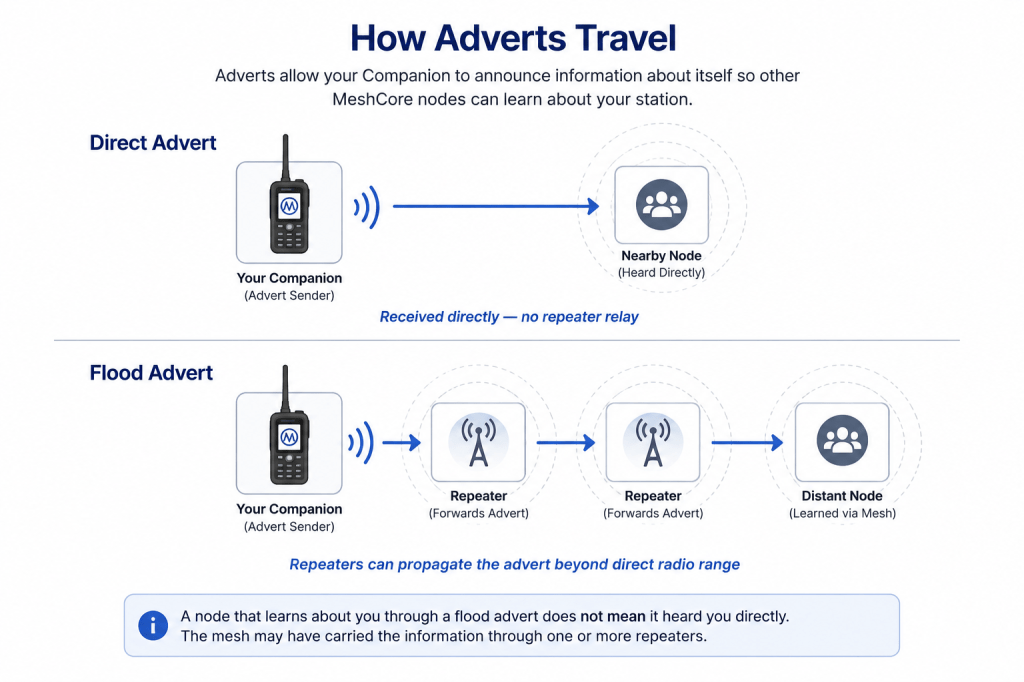
A direct advert is intended for nodes that can receive your transmission directly. It does not rely on repeaters to extend the announcement farther through the mesh.
A flood advert can be propagated by repeaters, allowing information about your station to reach nodes beyond your direct radio range.
This distinction is important: a station learning about you through a flood advert does not mean that it heard your Companion directly. The mesh may have carried the information through one or more repeaters.
What to Remember
Your Contacts list represents the MeshCore nodes your Companion has learned about or that you have added manually. A contact appearing in the list does not necessarily mean that station is within direct radio range.
Adverts help other MeshCore nodes learn about your station. Direct adverts are heard by nearby nodes, while flood adverts can travel through repeaters and reach farther across the mesh.
Knowing about a station and having a path to that station are two different things. The next page explains how MeshCore reaches other nodes using direct communication, flooded messages, paths, and hops.
Continue to: Understanding Direct, Flooded Message, Paths and Hops →
 MeshCore Learning